



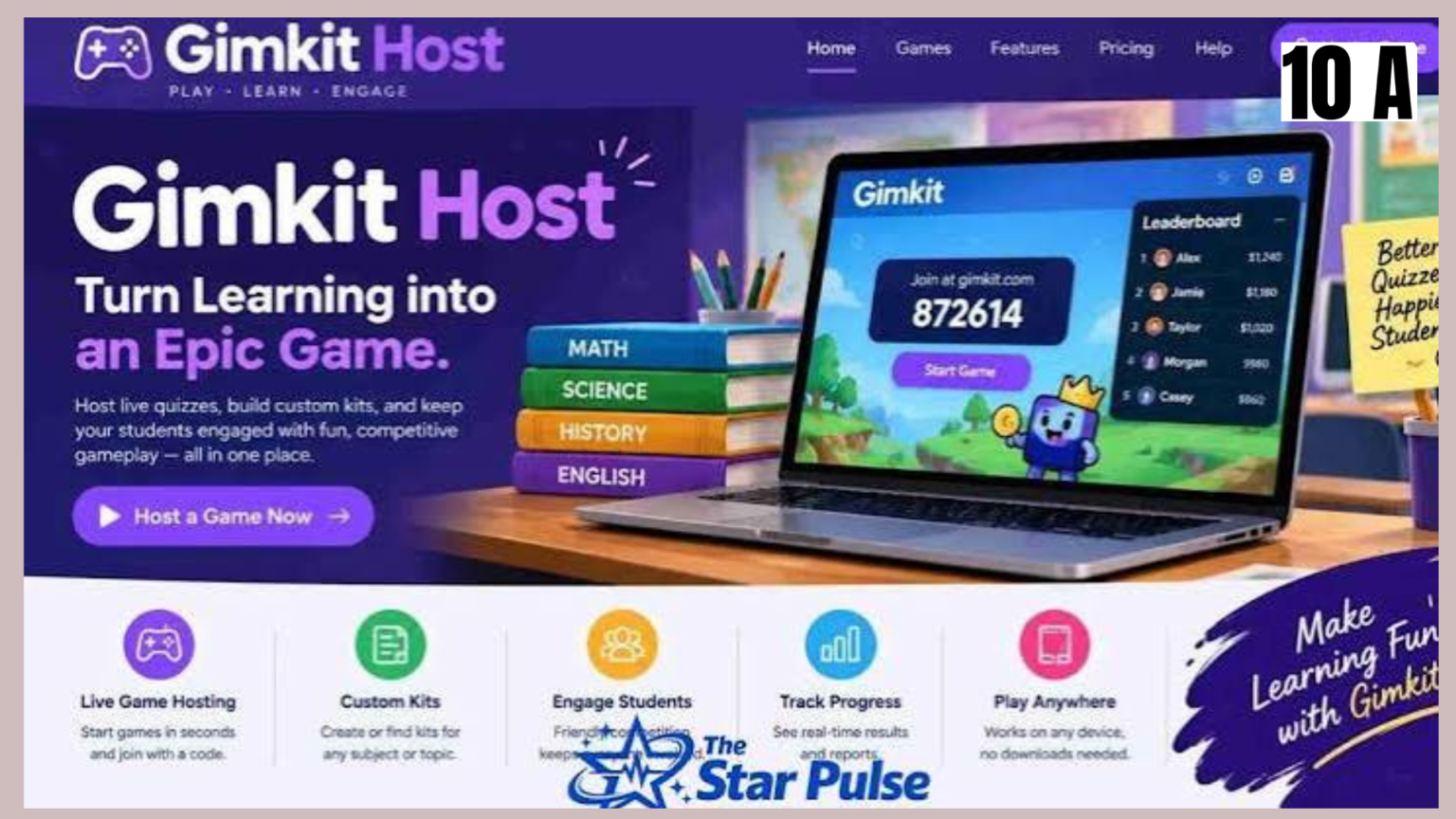
Gimkit has become a popular interactive learning platform that makes classroom activities more engaging through quizzes, games, and friendly competition. Whether you are a teacher looking for a creative way to review lessons or a student interested in understanding how classroom games work, learning how to use Gimkit Host can make the experience much easier. Hosting a Gimkit game allows an organizer to select a game mode, customize settings, invite participants, and manage a live learning session. Unlike traditional quizzes, Gimkit combines questions with game-style rewards and challenges, giving students a reason to stay involved. In this guide, we will explore how Gimkit hosting works, its features, advantages, limitations, and practical tips for running a successful game.
What Is Gimkit Host?
Gimkit Host refers to the process of creating and managing a live game on Gimkit. The platform is designed to make learning more interactive by turning questions into a game-based experience.
A teacher or organizer can choose a question set, select an available game mode, and start a session. Participants then join the game using the instructions displayed by the host.
The main purpose is to make reviewing educational material more enjoyable. Instead of simply answering questions on paper, students participate in an interactive activity where correct answers can help them earn in-game rewards.
Gimkit can be used for several educational purposes, including:
- Reviewing classroom lessons.
- Practicing vocabulary and definitions.
- Preparing for tests and examinations.
- Checking students’ understanding of a topic.
- Encouraging teamwork and participation.
- Making revision sessions more enjoyable.
The platform is particularly useful when teachers want to combine learning objectives with an entertaining classroom activity.
How to Host a Gimkit Game Step by Step
Hosting a Gimkit game is straightforward, even if you are using the platform for the first time. You need an educator account, a question set, and a device with a reliable internet connection.
Follow these steps to start your first live game.
Step 1: Open the Official Gimkit Website
Visit Gimkit’s official website and sign in to your account. If you are new, create an educator account and complete the registration process.
Once logged in, you will reach your dashboard, where you can find your existing question sets, also known as kits.
Step 2: Choose or Create a Kit
A kit is a collection of questions used during a Gimkit game.
You can select an existing kit from your dashboard or create a new one based on your lesson. For example, a science teacher might prepare questions about the solar system, while an English teacher could create a vocabulary practice kit.
Before starting, check that your questions are accurate, understandable, and appropriate for your students’ learning levels.
Step 3: Click Play Live
Find the kit you want to use and click the green Play Live button.
Gimkit will open its game mode selection screen. Here, you can explore the available options and choose the experience that best matches your classroom activity.
Step 4: Select a Game Mode
Different modes offer different gameplay experiences. Some focus on individual competition, while others encourage teamwork or exploration.
If you are unsure which option to choose, start with a straightforward mode and introduce more complex experiences later.
Step 5: Customize Game Settings
After selecting a mode, click Continue to access the game options.
Depending on the selected mode, you may be able to customize:
- Game goals and time limits.
- Whether students can join after the game begins.
- Nickname Generator settings.
- Class connections.
- Mode-specific gameplay options.
These settings help teachers control the session and create a suitable learning environment. Gimkit Help+1
Step 6: Share the Game Code
Once the game is ready, Gimkit opens a lobby where participants can join.
Students can access the game through:
- A game code displayed on the host’s screen.
- A QR code.
- A direct game invitation link.
Students who use a game code can visit Gimkit Join and enter the code to participate. Gimkit Help+1
Step 7: Start the Game
Check the lobby to make sure the expected participants have joined. Review the displayed nicknames and remove inappropriate or unfamiliar participants when necessary.
When everyone is ready, click Start Game. You can now manage the activity through the host controls.

Important Features of Gimkit Host
Gimkit hosting offers several useful features that make classroom activities easier to organize.
1. Live Game Hosting
The live hosting feature allows teachers to conduct activities with students participating simultaneously.
Everyone answers questions during the same session, creating a shared classroom experience.
2. Multiple Game Modes
One of Gimkit’s biggest attractions is its selection of game modes. The available choices can vary, so teachers should check the mode picker before planning an activity.
Different modes can support different learning goals, from quick revision to collaborative challenges.
3. Custom Game Settings
Teachers can adjust game settings according to their classroom requirements.
For example, they can choose appropriate game goals, manage late joining, and enable nickname controls. This flexibility makes it easier to organize activities for different age groups.
4. QR Code and Join Link
Typing a game code can sometimes be inconvenient, especially in larger classrooms.
Gimkit provides QR codes and direct join links that make the joining process quicker. Students can scan the QR code or open the shared link rather than manually entering the code. Gimkit Help+1
5. Host Controls
The host has access to controls for managing the live session.
These include viewing participants, displaying the leaderboard, adjusting music and sound effects, and ending the game.
These options allow teachers to maintain control while students focus on the activity. Gimkit Help+1
Popular Gimkit Game Modes and Their Uses
Choosing the right game mode can make a significant difference in student participation.
Here are some ways to think about selecting a mode:
| Learning objective | Suitable approach |
|---|---|
| Quick lesson revision | A simple individual game |
| Group participation | A team-based mode |
| Classroom competition | A competitive game mode |
| Interactive exploration | A 2D game mode |
| Independent practice | An assignment, where available |
The best choice depends on the subject, students’ ages, available time, and classroom environment.
Teachers should avoid selecting a complicated mode simply because it looks entertaining. The game should support the lesson rather than distract from it.
How Students Can Join a Gimkit Host Game
Students do not necessarily need to create an account to participate in a standard live game.
The joining process is simple:
- Ask the teacher for the active Gimkit game code.
- Open a browser on a phone, tablet, Chromebook, or computer.
- Visit Gimkit’s official joining page.
- Enter the game code.
- Choose an appropriate nickname if prompted.
- Wait in the lobby until the host starts the session.
Students using a connected Gimkit class may have a different joining experience. Gimkit Help+1
Is Gimkit Host Free to Use?
Gimkit offers a free educator account option known as Gimkit Basic, as well as a paid Pro option.
The free version can be useful for teachers who want to explore classroom game-based learning without immediately purchasing a subscription.
Gimkit Pro offers additional features, including Pro-exclusive game modes, assignments, audio questions, and image uploads. New educator accounts may also receive a 14-day Pro trial, according to the official account FAQ. Gimkit Help
Before choosing a subscription, consider how frequently you plan to use Gimkit and whether the additional features are necessary for your teaching activities.
For the latest plan details, visit the official Gimkit website.
Benefits of Using Gimkit Host in Education
Gimkit can offer several advantages when teachers use it thoughtfully.
Makes Learning More Engaging
Traditional revision activities can sometimes feel repetitive. Game-based questions introduce variety and give students another way to interact with lesson material.
Encourages Active Participation
Students have an opportunity to answer questions rather than simply listen to a lesson. This can help teachers identify which topics need further explanation.
Supports Different Learning Activities
Gimkit can be adapted for vocabulary exercises, mathematics practice, science revision, and general knowledge activities.
Provides Immediate Interaction
Students receive an interactive experience while the teacher can observe participation and manage the game.
Makes Classroom Revision More Enjoyable
Friendly competition and game mechanics can add excitement to revision sessions, particularly when the questions are relevant and appropriately challenging.
Disadvantages and Limitations of Gimkit Host
Although Gimkit has several benefits, it is important to understand its limitations.
1. Internet dependency: A stable internet connection is important. Weak Wi-Fi can interrupt participation.
2. Screen-time concerns: Long gaming sessions may increase unnecessary screen time. Teachers should keep activities focused and reasonably short.
3. Competition can distract students: Some students may become more interested in winning than understanding the questions.
4. Preparation takes time: Teachers need to create or review question sets before hosting an effective session.
5. Subscription limitations: Some features are available only through paid plans, which may not suit every educator’s budget.
The best solution is to use Gimkit as a supporting educational activity rather than a replacement for teaching, discussion, and individual practice.
Tips for Hosting a Successful Gimkit Game
If you want your Gimkit session to run smoothly, a little preparation can make a big difference.
Here are some practical recommendations:
- Prepare questions in advance: Check spelling, accuracy, and difficulty before starting.
- Choose the right game mode: Match the activity to your students’ learning objectives.
- Explain the rules: Give students a short introduction so they understand how to participate.
- Check the internet connection: Test your classroom devices before launching the session.
- Use appropriate nicknames: Enable the Nickname Generator if you want greater control over player names.
- Keep sessions balanced: Avoid making every lesson a competition. Include discussion and explanations between activities.
- Review incorrect answers: Use mistakes as opportunities to revisit difficult concepts.
A successful Gimkit host does more than start a game. The real goal is to create an enjoyable activity that helps students understand and remember what they learn.
Gimkit Host for Teachers and Students
Gimkit offers different benefits depending on who is using the platform.
For teachers: It provides an interactive way to review lessons, encourage classroom participation, and identify areas where students need additional practice.
For students: It offers an alternative to traditional revision activities. Students can answer questions, participate in challenges, and learn through interactive gameplay.
For schools: It can support classroom engagement across different subjects when teachers have suitable devices and internet access.
However, schools should consider accessibility, student privacy, and their own technology policies before introducing any online educational platform.
Common Problems When Hosting Gimkit and How to Fix Them
Sometimes a Gimkit session may not work as expected. Fortunately, many common issues have simple solutions.
| Problem | Possible solution |
|---|---|
| Game code is not working | Check that the host has started an active game and shared the correct code. |
| Students cannot join | Check the internet connection and joining settings. |
| Game is running slowly | Refresh the browser and close unnecessary tabs. |
| Inappropriate player names | Enable the Nickname Generator or remove the player. |
| Students cannot join late | Check whether late joining is enabled in the game settings. |
If a problem continues, consult the official Gimkit Help Center for troubleshooting instructions.
Conclusion
Gimkit Host is a useful option for teachers who want to make classroom revision more interactive and enjoyable. From selecting question sets and choosing game modes to sharing joining codes and managing live sessions, the platform provides several tools for organizing educational games. Its biggest advantage is the combination of learning activities and game-based engagement. However, teachers should use it with a clear educational purpose and consider limitations such as internet access, screen time, and paid features. Whether you are a first-time host or an experienced educator, Gimkit can add variety to your teaching routine. Explore its features, prepare your first question set, and discover how interactive learning can improve your classroom activities.
Frequently Asked Questions (FAQs)
1. Can you host a Gimkit game without creating an account?
Standard hosting requires an appropriate Gimkit account. Students can generally join a live game without creating their own accounts.
2. Can I host a Gimkit game on my phone?
Yes, you can access Gimkit through a compatible mobile browser, although a computer may be more convenient for managing a classroom session.
3. Does a Gimkit host code expire?
Yes. A live game code is associated with its particular session and will no longer work after the game ends.
4. Can two teachers host the same Gimkit game?
Teachers can coordinate classroom activities, but the hosting controls belong to the account managing the particular live session.
5. Is Gimkit suitable for elementary school students?
Yes. Teachers can select age-appropriate questions and game settings to create activities suitable for younger learners.

